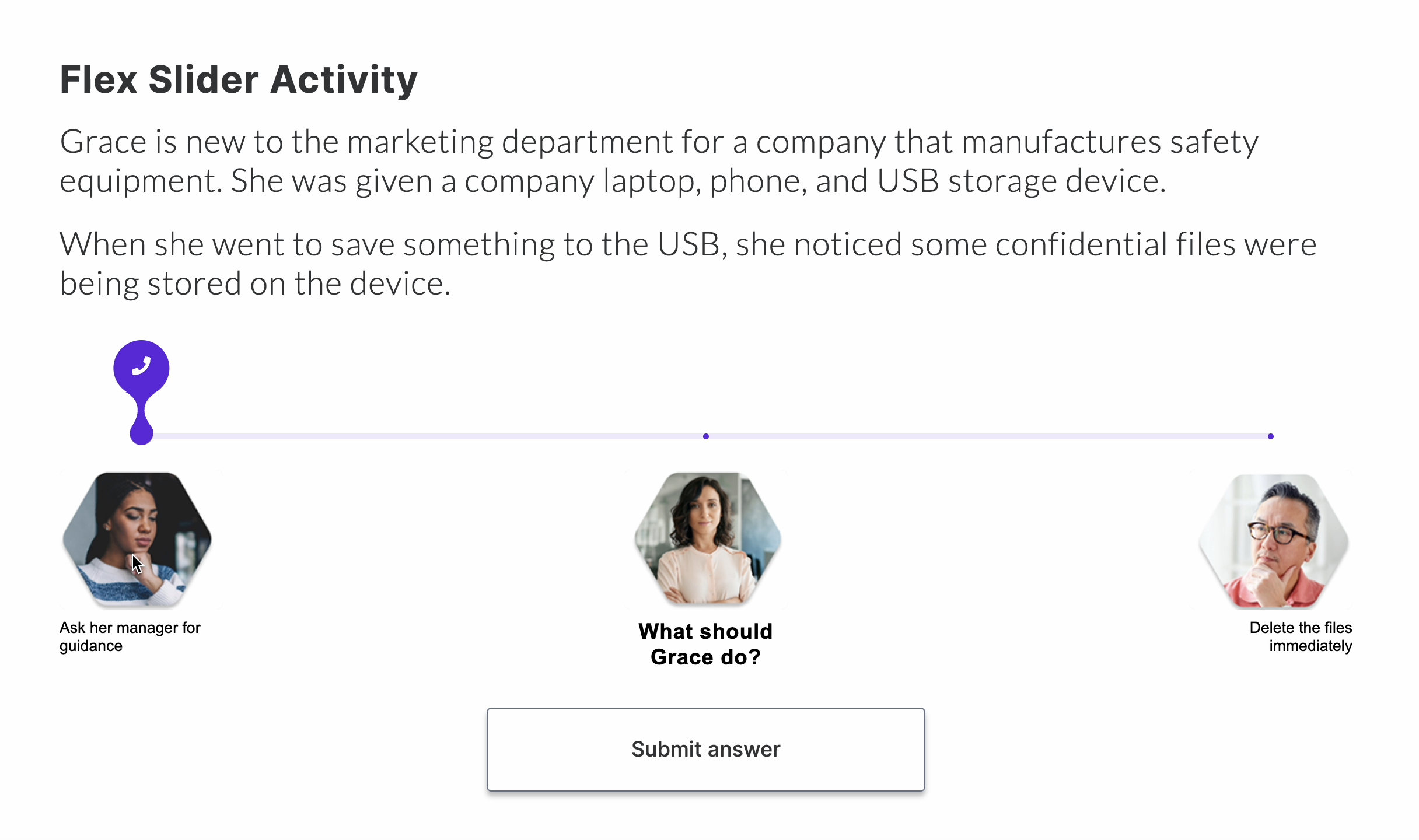
The new interactive Flex-enabled activity allows learners to choose using a slider for an engaging experience.
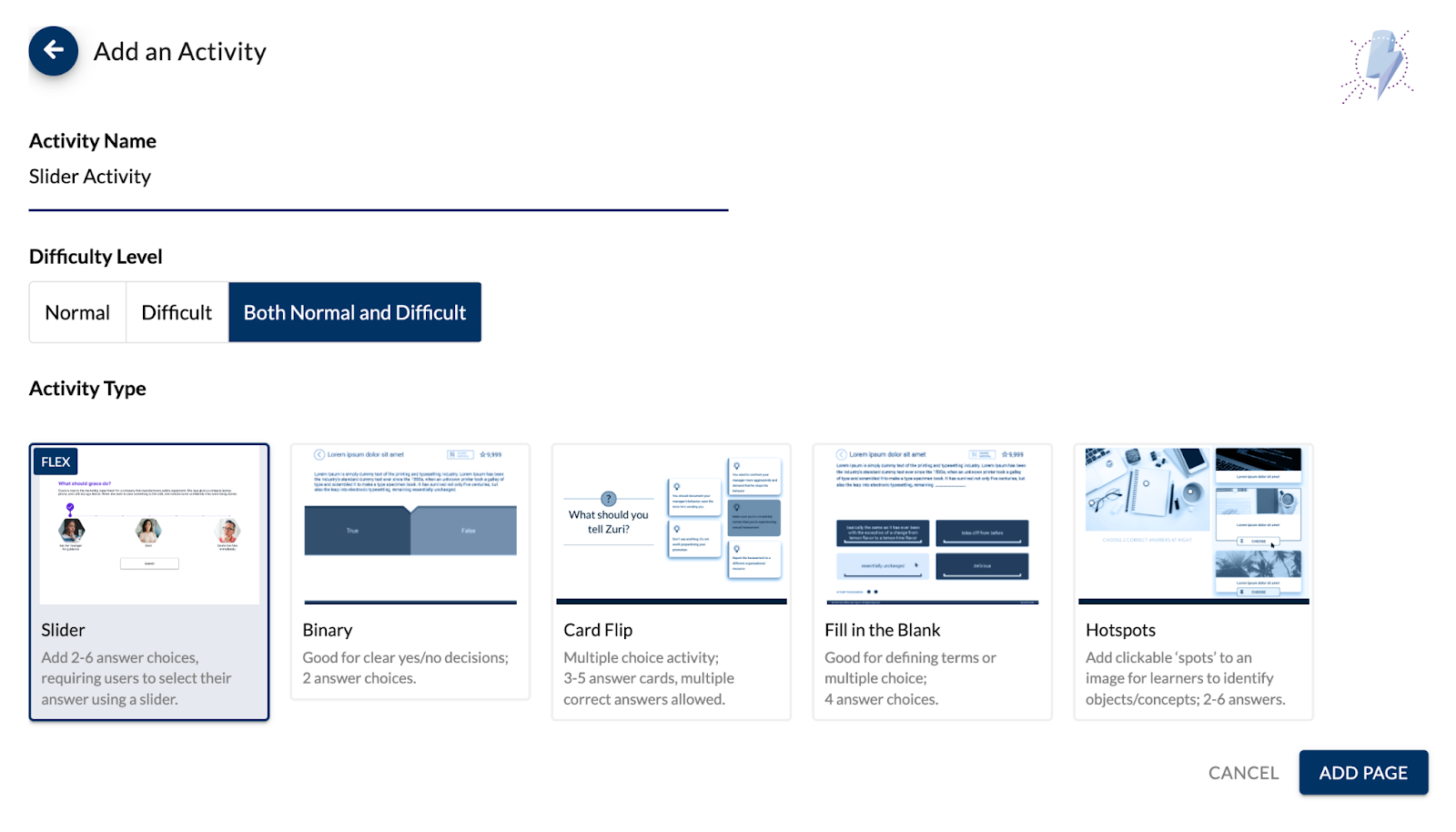
To add the Slider Activity:
- Open your course and select the topic where you would like to add the activity
- Click the +Add Page button
- Select the Activity option
- Click on the Slider activity option
- Enter an Activity Name in the field
- Select the Difficulty Level and click the Add Page button
To customize content:
Editing Text
- Click on the text in the live preview on the left panel or use the fields in the right panel to edit the following text fields:
- Activity Title Text
- Activity Question Text
- Activity Feedback
- Submit Button Text (optional)
- Click on the Answer Choice cards to edit text fields for the answer choices
Editing the Slider Start Point (optional)
- Select the Slider Start Point card in the main editing pane

- Customize the text
- Add an icon
- Adjust the slider's starting position
- Choose a custom color for the slider marker
Customizing Answer Choices
The Slider activity can be configured with anywhere from 2 to 6 answer choices and must include one correct answer choice.
- Click the +Add Answer button to add as many as 6 answer choices
- Click on the Answer choice cards to customize content for each answer choice
- Customize answer text and feedback
- Set the answer to be CORRECT or WRONG
- Add icon (optional)
- Choose a custom color (optional)
- Add an image asset (optional)
Customizing Icons
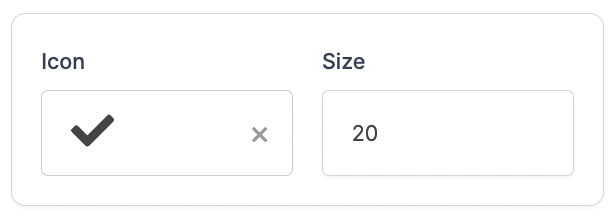
- Add or change any icons fields or change icon size and customize icon color
Changing the Difficulty Level
To learn more about difficulty levels and how scoring works, click here.
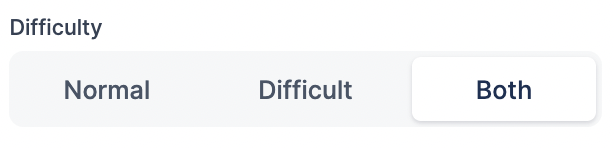
- In the main editing panel, click on the desired difficulty level button