Prerequisites: To display feedback, you'll need the Tutor extension enabled on your course.
The Multiple choice question component is one of the most common, simple, and essential features of e-learning.
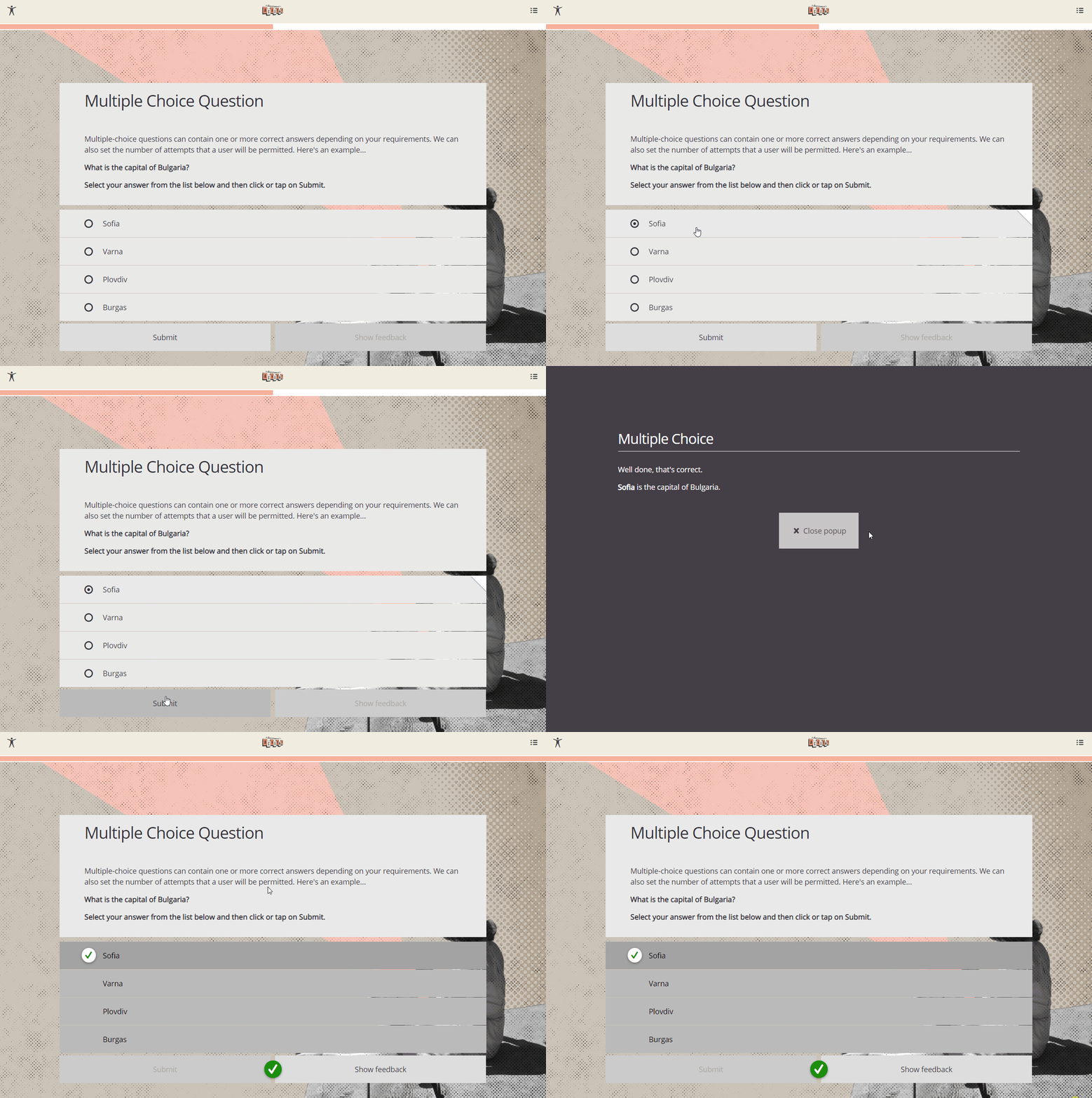
What it does
The Multiple choice question component presents a question with one or more correct answers. Learners are prompted to select the correct answer(s), click Submit, and receive feedback.
Basic configuration
| Body: Use this section to write your question. | 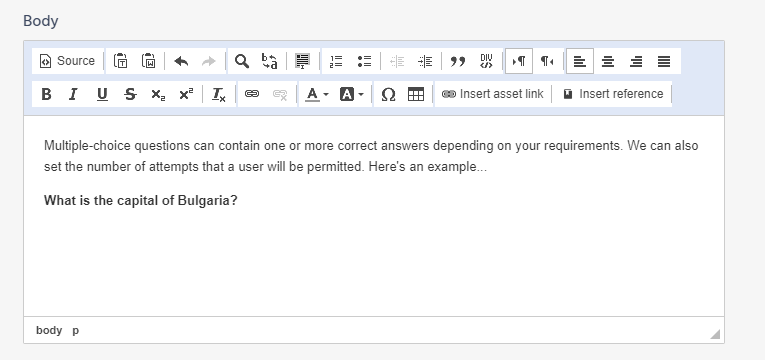 |
| Instruction: The instruction text appears in bold above the answers. | 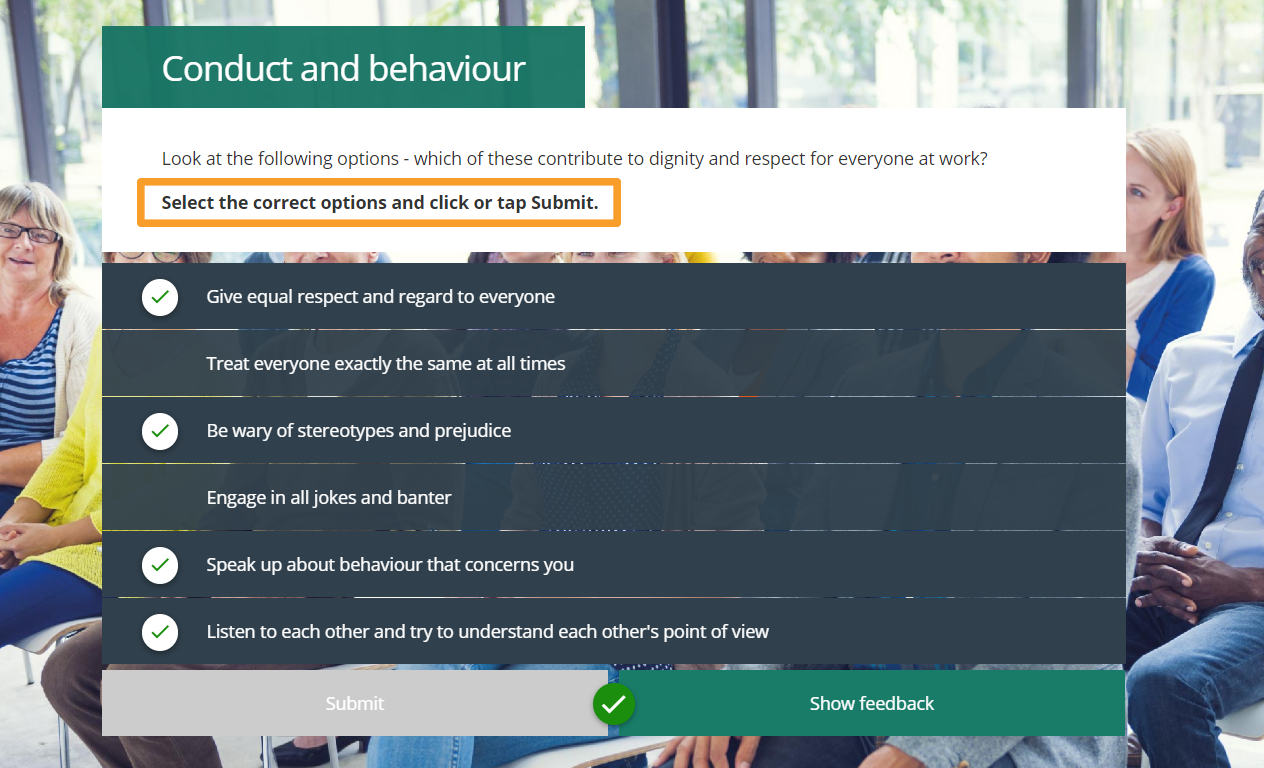 |
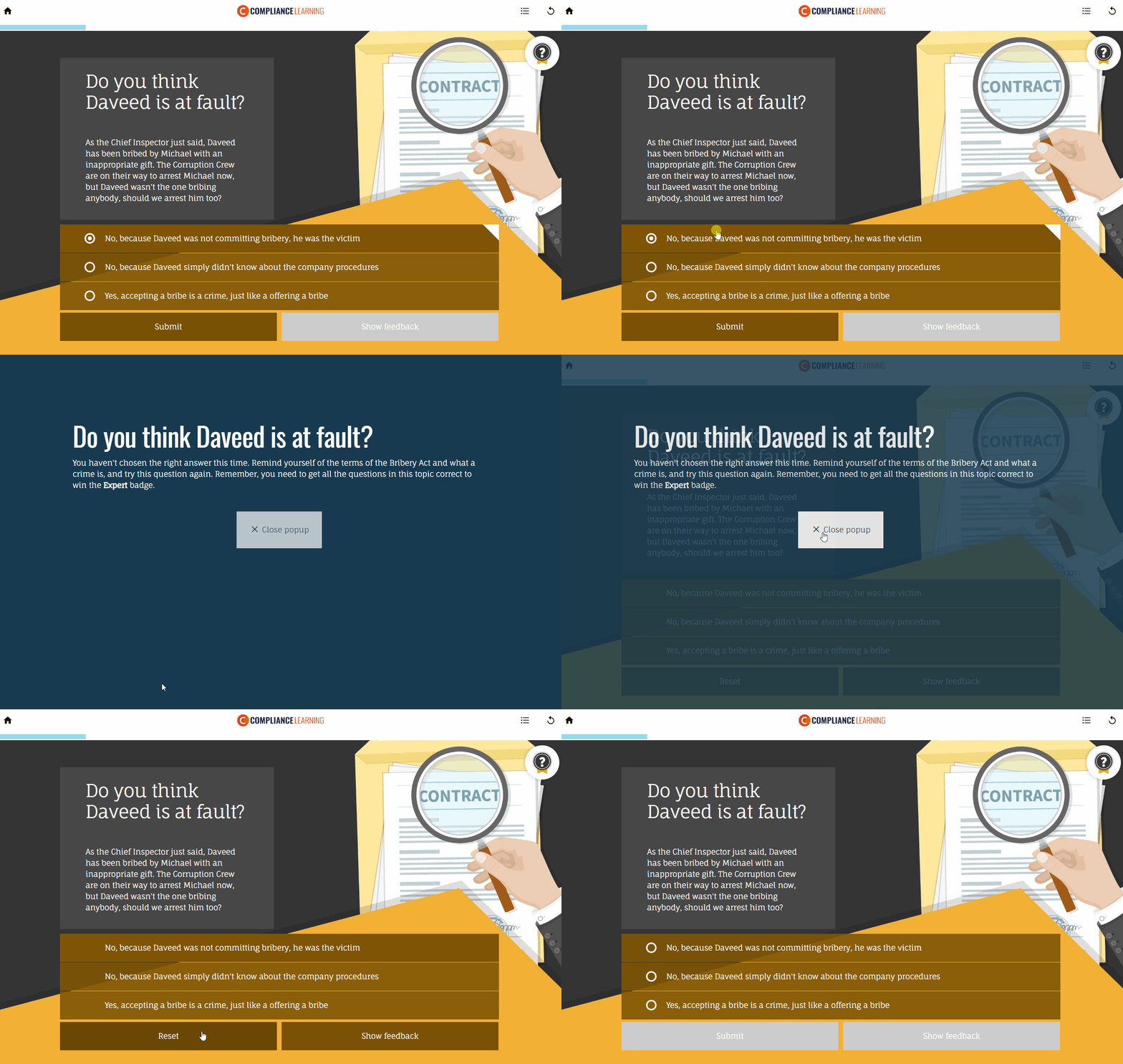
| Attempts: If you want to allow your learners to have more than one try at this question, make this more than one. Set it to -1 to give them infinite attempts. |
An example of a question with multiple attempts. Notice the Reset button that appears. |
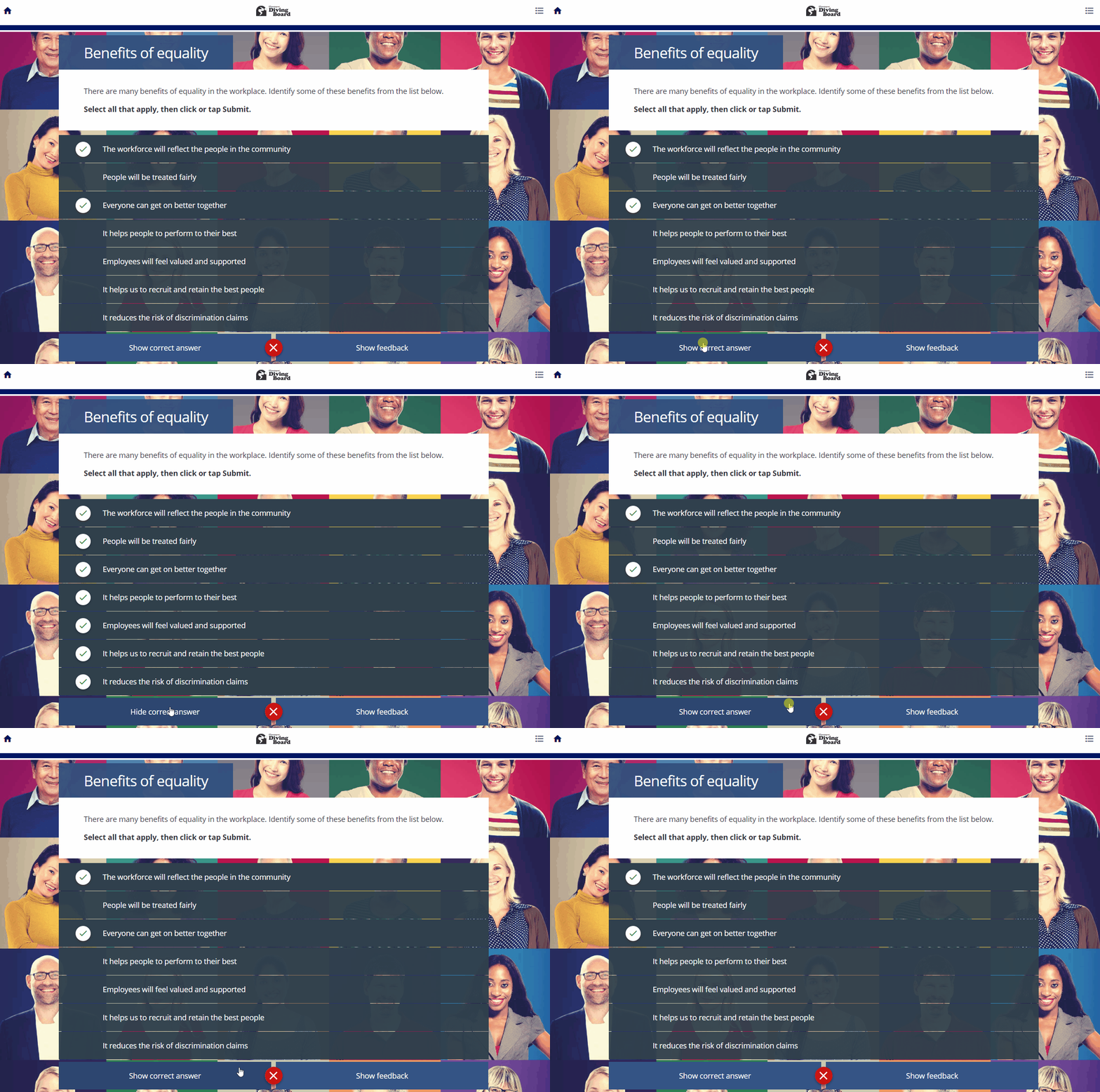
| Display Model Answer: If this is toggled on, the learner will see a Show correct answer button if they've got the answer wrong and have exhausted their attempts. |
|
| Display Feedback: When this is toggled on, learners will see feedback after they click Submit and will see a Show Feedback button once they've answered the question. | 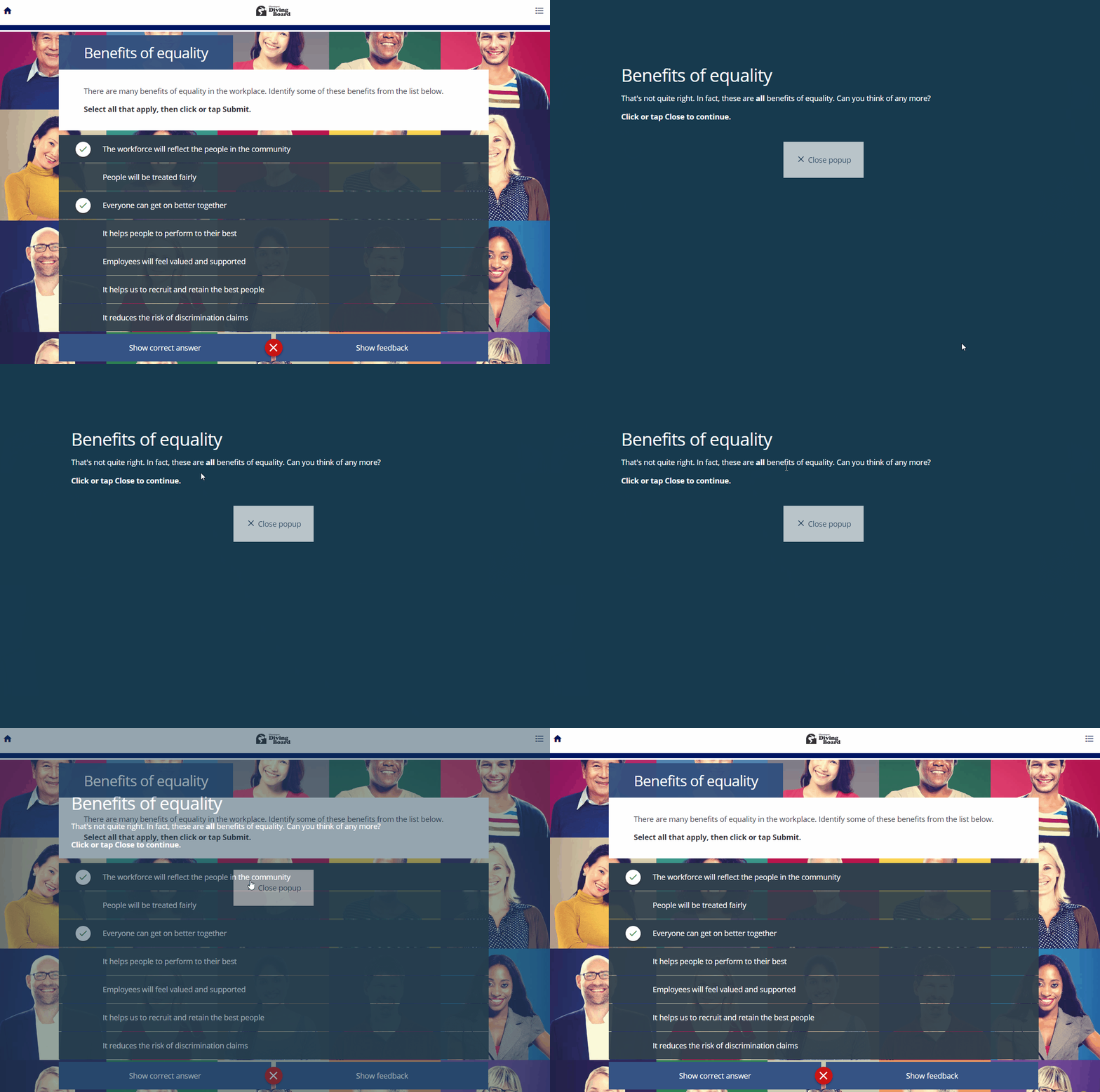 |
| Display Marking: If this is enabled, ticks and crosses will indicate which answers that learners selected were correct. | 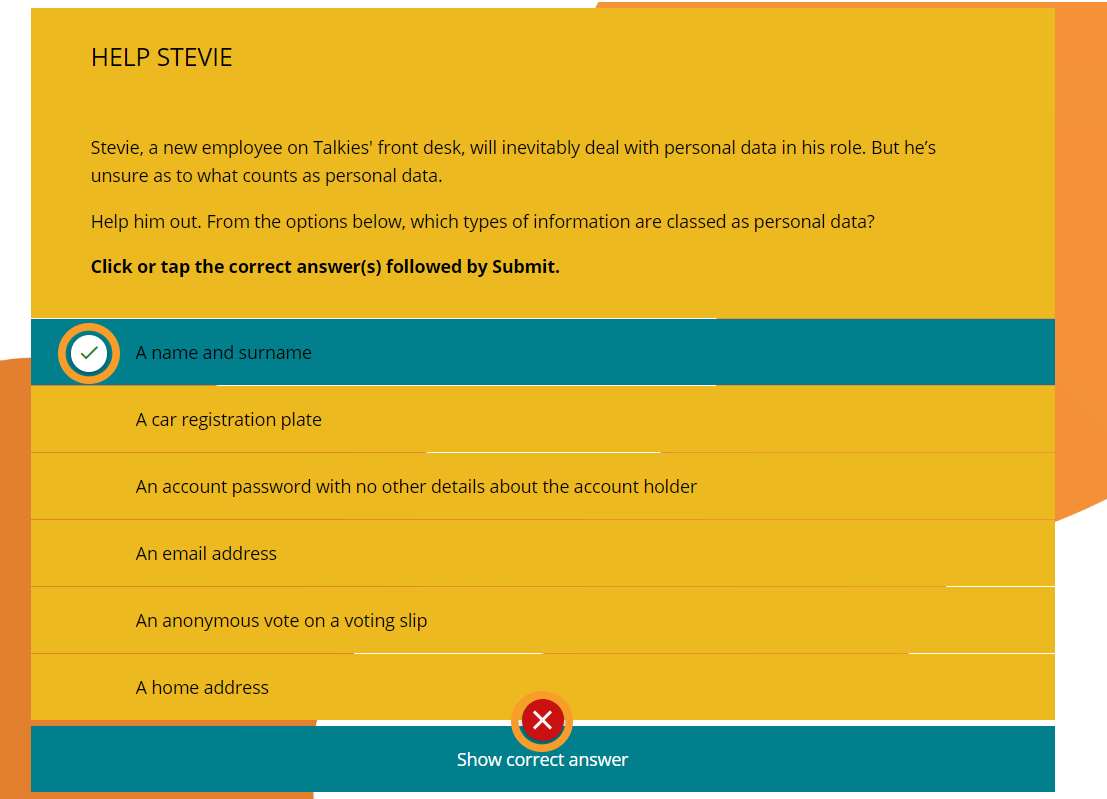 |
| Display Attempts: If enabled, the number of attempts that a learner has left will appear beneath the question. | 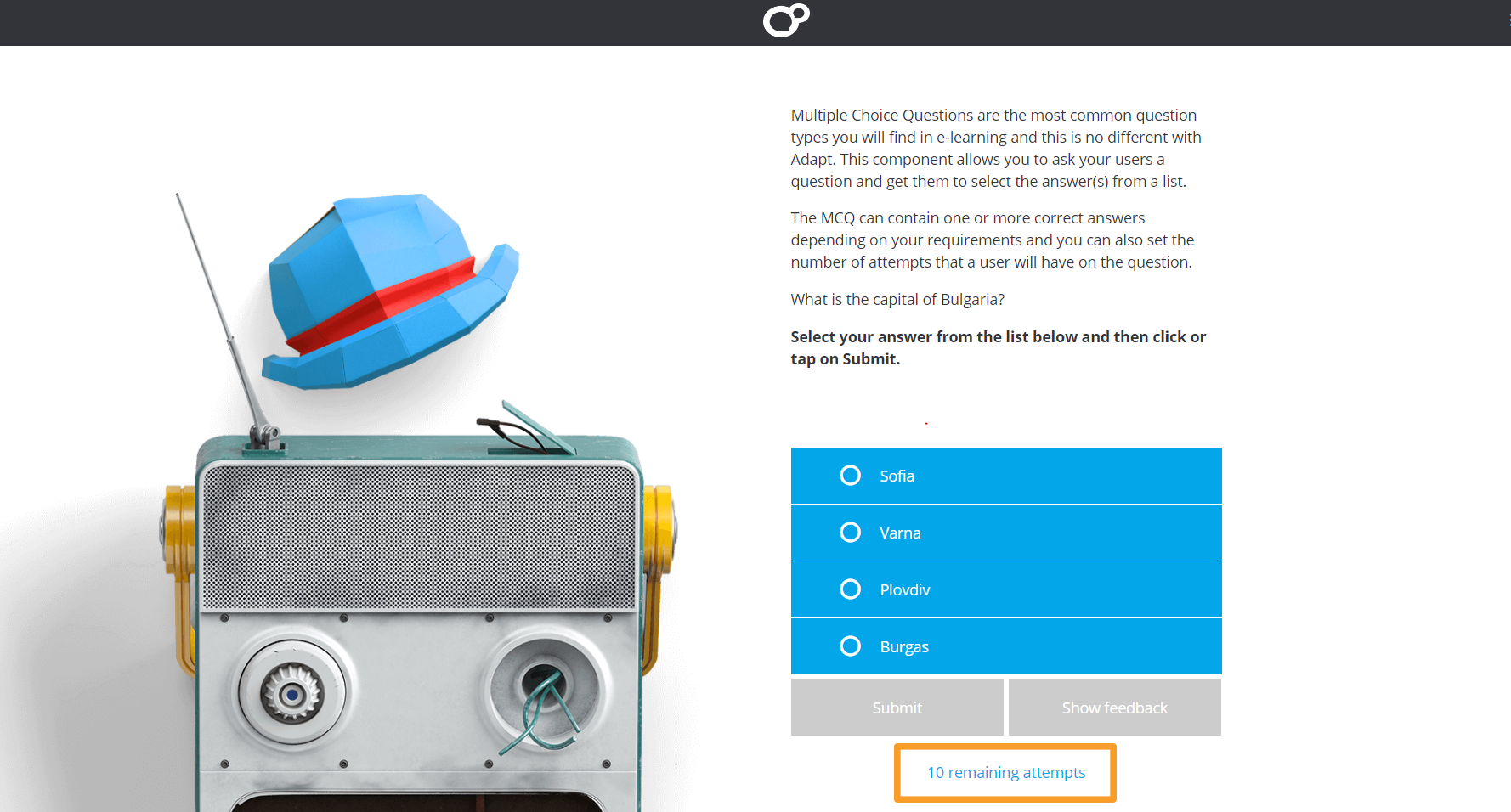 |
|
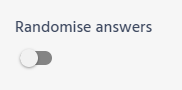
Randomise answers: If this is on, the answers will be displayed in a random order each time the page is loaded.
|
 |
|
Record interaction: If this is on and you're using either the xAPI extension or the Spoor extension, information about the learner's answer will be sent to your learning platform. The score info sent to your platform is configured below.
|
 |
|
Enable item scoring: When disabled, this question scores 0 for incorrect and 'Question Weight' for correct. When enabled, this question scores by summing the scores of the selected options.
|
 |
|
Question Weight: When item scoring is disabled, this is the score sent to the learning platform if the learner gets the question right. |
 |
|
Selectable Items: This dictates how many answers the learner can select before clicking Submit.
|
On this MCQ, Selectable Items is set to 1. |

Adding answers
To add an answer, click Add.
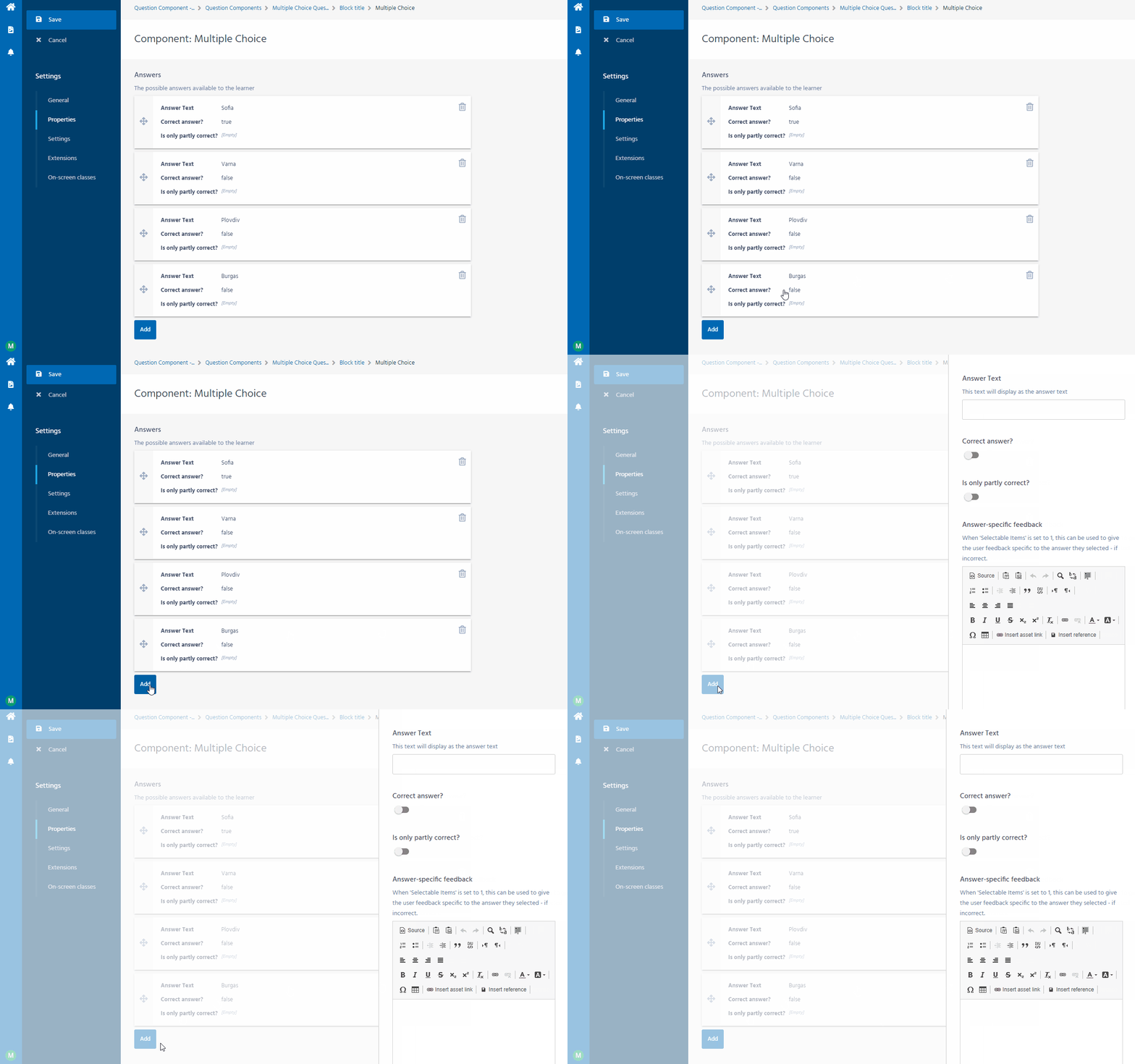
| Answer Text: The text displayed in the answer section. | 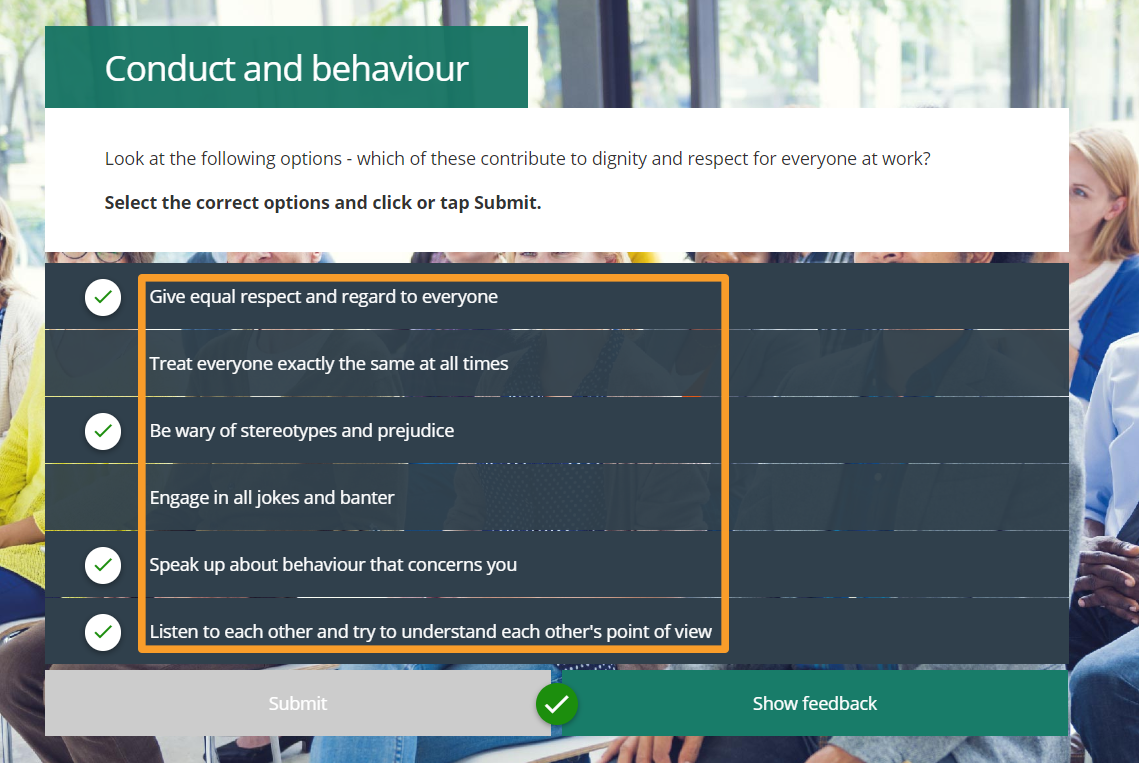 |
|
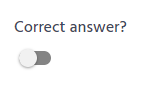
Correct answer?: If this is enabled, the learner will have their question marked as correct if they select this answer. |
 |
|
Is only partly correct?: If this is enabled:
|
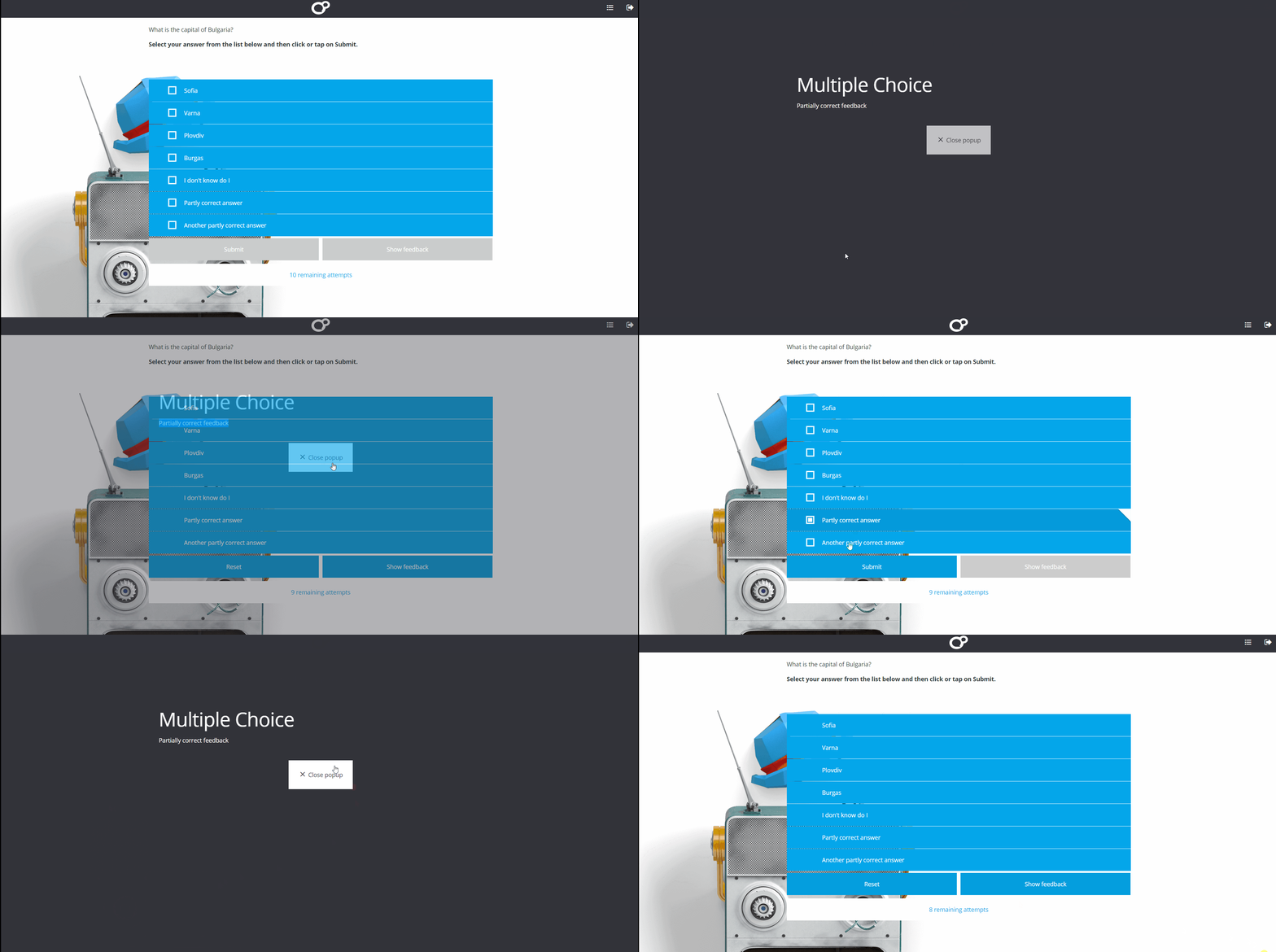 |
| Answer-specific feedback: When 'Selectable Items' is set to 1, this can be used to give the user feedback specific to the answer they selected - if incorrect. | 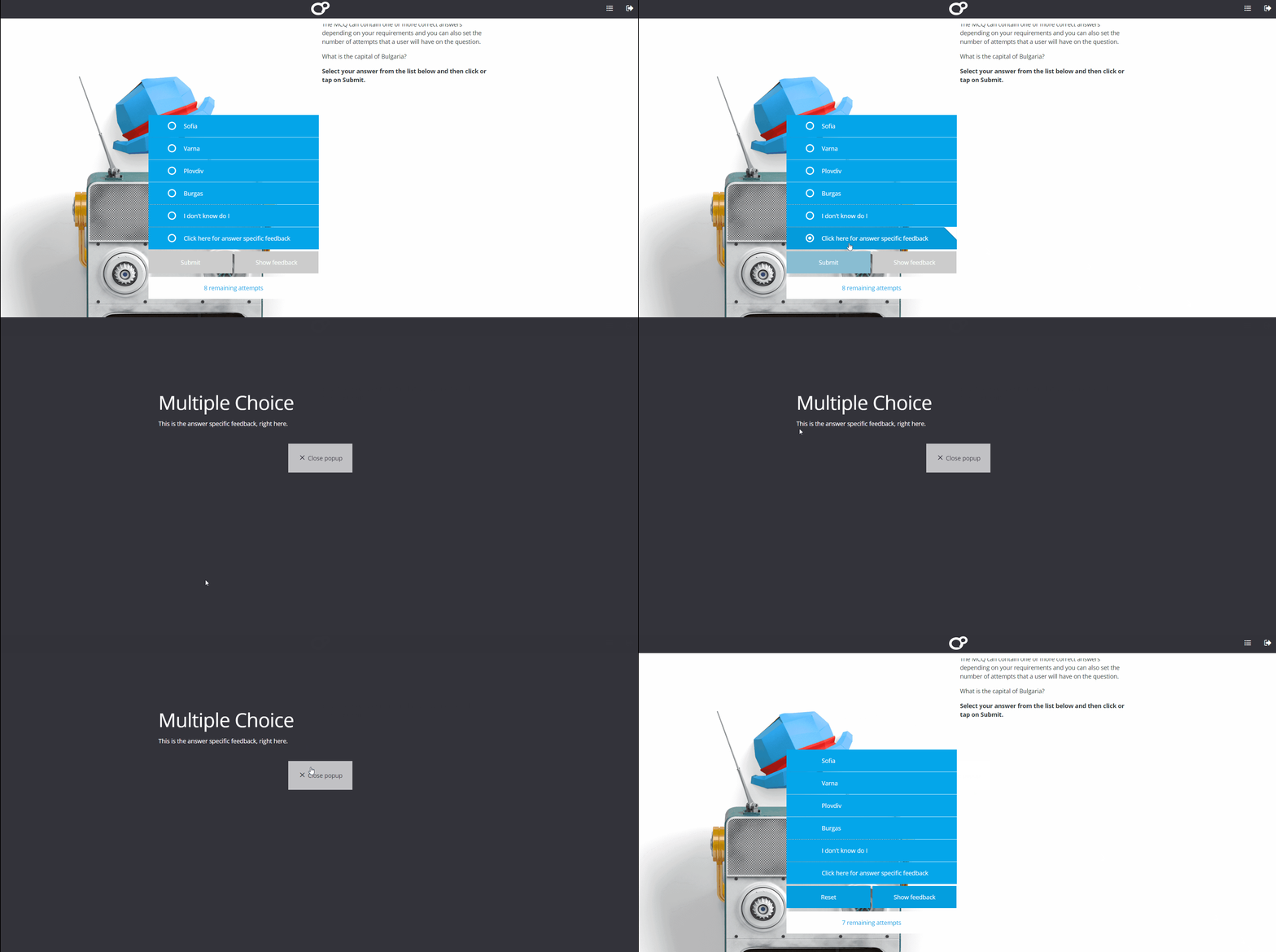 |
| Score: If item scoring is enabled, the scores of all the answers the learner's selected will be combined to make a total which is then sent to the learning platform. | 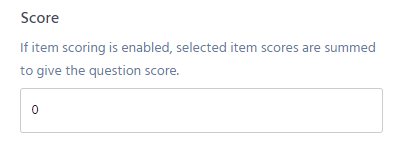 |