Occasionally, a user may need to retake a specific course. If the course is not part of a certification program, it is considered a stand-alone course. In such cases, completing the course again will not update the overall completion date. To provide the user with an updated completion date, a new attempt may need to be initiated.
As a Site Manager, there are a few different options that be chosen to achieve this:
- Completions Archive (applies to all completed users)
- Manually clear down users' progress (can be done on an individual basis)
- Course Re-Completion Plug-in (gives the individual user the option to complete)
Completions Archive
The Completions Archive allows those with the correct permission to clear down ALL completions of those complete within the course page. Regardless of when the user completed the course, if this option is taken their completion will automatically be moved to history and will give all completed users a fresh attempt to complete the course again.
Note, if the course is attached to a Program or Certification the option to archive completions is not allowed. An error like the one below will be given:
If the course is not attached to a Program or Certification, the screen below will be presented once clicked:
Clicking 'continue' will now remove completion's from all users. There is no option to determine who's completion is archived and who's is not.
Manually clear down users' progress
When manually clearing down a users progress on a course page, there are a few steps that need to be taken to ensure that when the Cron runs, that the course page does not automatically complete itself again.
Step 1 - Remove the users attempt on the SCORM Package
On the course page as a Site Manager (or with the correct permissions), you will click on the SCORM package:
Click on Reports:
Next is to find the user in question. Using the search by first initial of the users first name and then their last should assist with this. Once the user has been found, this will allow the removal of the attempt:
Once the above has been completed, this now removes what would mark the activity as complete on the course page. However, the tick may still remain on the course page. The next step will remove it.
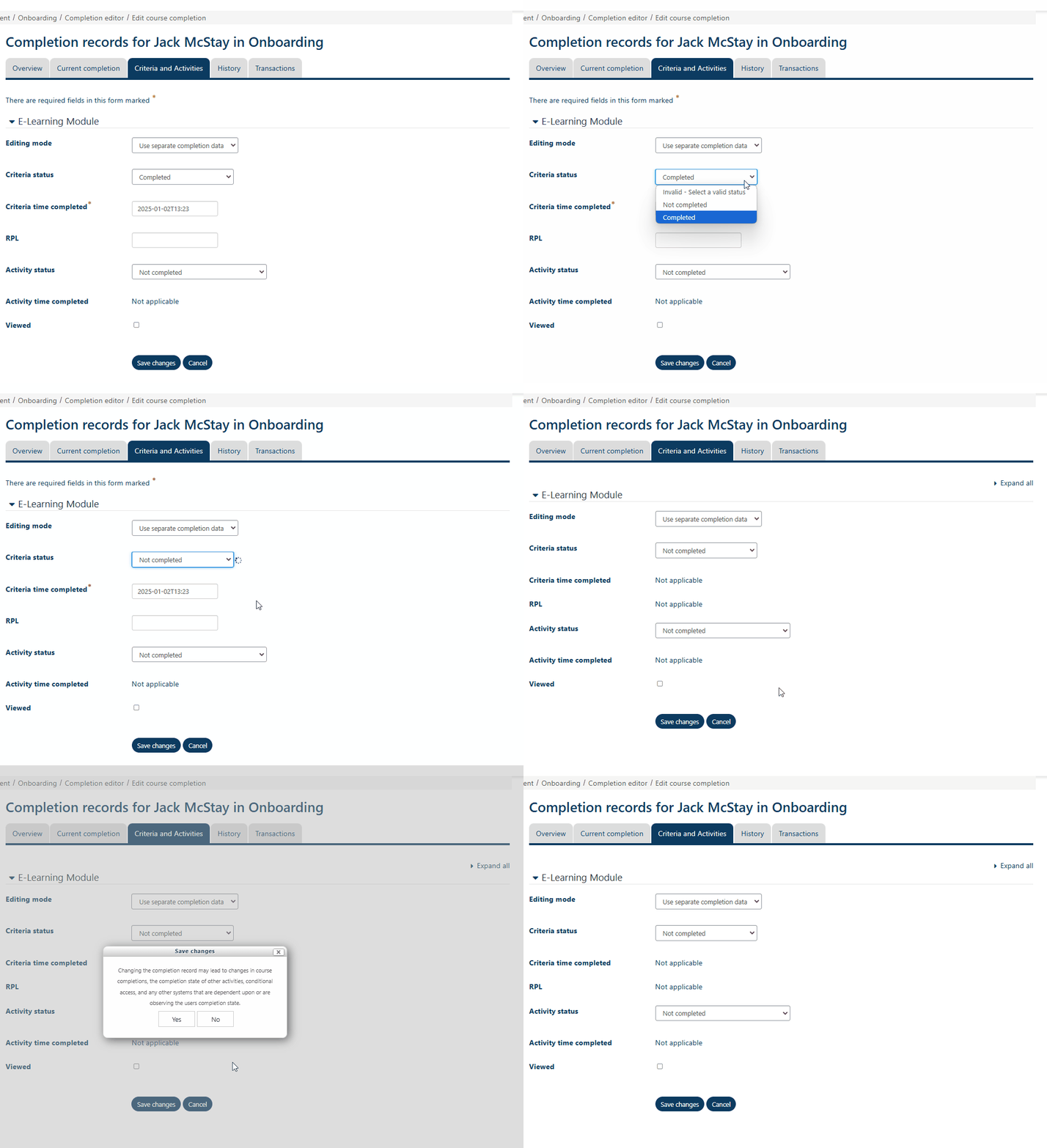
Step 2 - Completion Editor
On the next screen, search for the user in question and then select 'Edit course completion'
Starting first with the overall course completion, within this section the overall course completion will need to be removed:
The following screen will then remove the course completion therefore taking the user from 100% (or similar) to 0%:
 Course Re-Completion Plugin
This new feature allows learners to take control of their own learning. If this plugin is enabled at course level, the user can automatically archive their completion and get a new attempt without intervention from Site Managers. More information about this Plug in can be seen here.